A Simple Way to Choose a Note-Taking App
Choose a notes app by tracing how you capture, find, and revisit information. A small, focused comparison can reveal which tool fits your habits.
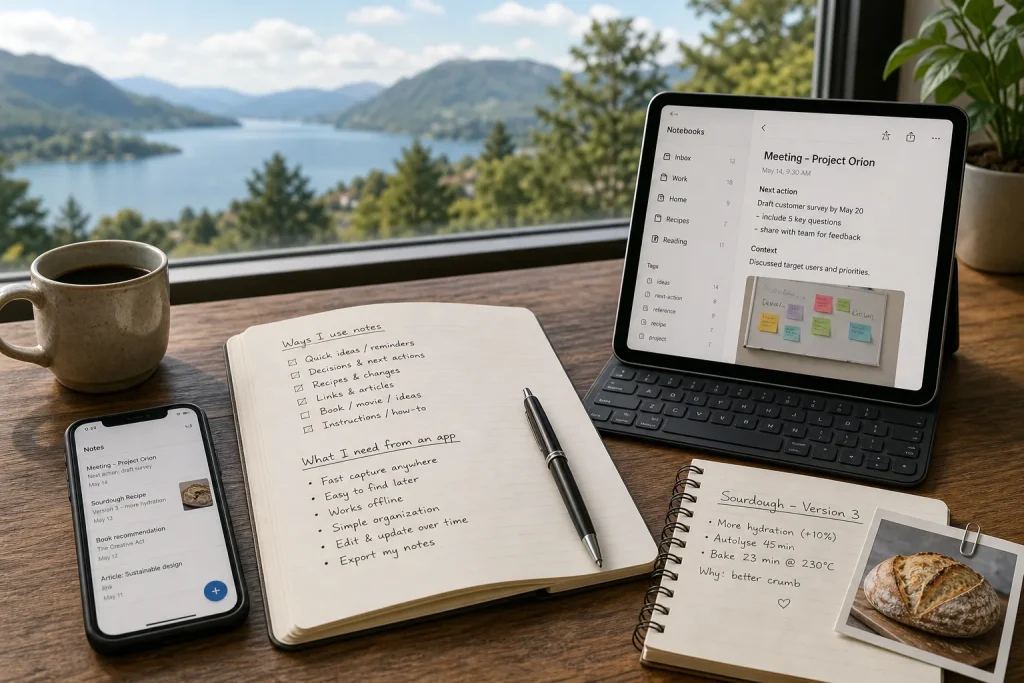
You jot down a recipe change while cooking, save a meeting decision on your laptop, and later need the name of a book someone recommended. The best note-taking app is the one that helps you capture each item without fuss and retrieve it when it matters—not the one with the longest feature list.
To choose well, follow the path your notes take: from the moment you record something, through the search or browsing that brings it back, to the way you use it again. This guide lays out that process in order. It works for a personal notebook or a modest collection shared across devices, and it avoids treating elaborate organization as a requirement.
Start with the notes you actually need to keep
Before comparing apps, identify a few kinds of information you regularly want to remember. Start from recent situations rather than an imagined ideal system. You might have captured a useful link, written down a decision, saved a set of instructions, or dictated a reminder while away from your desk.
Write a short list of these note types and what you would want to do with each one later. “Meeting note” is less useful than “meeting note where I can find the agreed next action.” “Recipe” becomes more precise as “recipe with the version I changed and the reason for the change.” These descriptions reveal the job the app must support.
Separate quick capture from longer writing. A note that must be recorded in the middle of a conversation has different demands from a project outline you will edit at a desk. Also consider the devices you actually use: phone, tablet, computer, or a shared household device. An app that works only in a setting where you rarely have it will be a poor fit, even if it is capable.
Keep the list manageable. The goal is not to catalogue every possible use, but to make later comparisons concrete. If your notes are mostly short reminders and links, a tool built around fast capture and search may suit you better than one that asks you to arrange everything into a detailed hierarchy.
Trace how a note gets into the app
Next, examine capture: the actions between noticing something and having a usable note saved. A good capture route should suit the moment. Check whether the app opens readily on the device you carry, whether it has a convenient new-note action, and whether you can add text, a link, or a photo without moving through a long sequence of screens.
Think about the conditions in which you take notes. If you often record thoughts while walking, voice input may be useful; if you mainly save articles at a desk, a browser clipper or straightforward paste may matter more. These are different needs, not a universal ranking of features. Look for the smallest set of capture methods that covers your routine.
Consider what happens when the connection is unavailable. Some apps let you create or read notes offline and sync later; others depend more heavily on a live connection. Check the app’s own description and settings, then consider where you might use it. If you often write on a train or in a room with unreliable service, offline access deserves attention. If you use the app only at a connected desk, it may be less important.
Inspect the first moments of use, not just the app’s feature page. Create a note, add a title or label if you normally would, and return to your previous screen. Notice whether the app’s prompts help or interrupt you. For quick reminders, a required choice of notebook, template, and tags before typing may create friction. For structured project notes, those choices might save effort later.
Check how you will find information again
Retrieval is the part people often overlook when choosing a notebook. A note is only useful if you can bring it back when you need it. Search is one route: check whether the app searches titles and note text, and whether it can search the kinds of attachments or images you expect to save. Capabilities vary, so confirm the details for the particular app rather than assuming that “search” covers everything.
Then consider browsing. Not every note is easy to describe in a search query. You might remember that an idea was written in a project notebook, or that a recipe belonged to a certain collection. Folders, notebooks, tags, and links between notes can all provide routes back. They are not interchangeable: folders commonly place a note in a location, while tags can mark several related notes without moving them into one place.
Choose the lightest organizing method that matches how you remember things. If you can usually recall a word or phrase, reliable search may do most of the work. If you think in groups such as “home,” “work,” and “reading,” a few notebooks may be easier to browse. If one note needs to connect to several topics, tags or links may help. Avoid adopting a complicated taxonomy just because the app supports one.
Try retrieval with ordinary, imperfect clues. Could you find a note by remembering a phrase from its middle? What if you remember the topic but not the title? Can you narrow a result by notebook or tag? An app that returns useful results from the words you naturally remember is likely to feel more forgiving than one that depends on perfect naming.
See what happens when you revisit a note
Finding an old note is not always the end of the task. You may need to update instructions, turn an idea into an action, or distinguish a current decision from an earlier draft. Check how comfortably the app supports editing and adding context over time.
For notes that change, look at version history or other ways to recover an earlier state, if the app offers them. This can matter for evolving plans or reference material, but may be unnecessary for brief reminders. For a note that records a decision, a date or a short line explaining what changed can be more useful than a complex database structure.
Consider what the note looks like outside the app. Can you copy its contents into an email or document? Can you export your notes in a format you could read elsewhere? Check what export includes, especially if your notes contain images, attachments, or formatting. Having a clear way to take your information with you can make a choice feel less binding.
Account access and privacy deserve practical attention too. Review where the service stores or syncs notes, the account recovery options, and any settings that apply to sensitive information. Do not assume a general-purpose notes app is an appropriate place for passwords, financial credentials, or other high-risk material. For those, use a tool designed for secure storage and follow its guidance.
Compare a short list against your real routine
Once you understand your needs, choose a small number of plausible apps to inspect. Include the app you already use if it has one, and compare alternatives only when they might solve a particular problem. A simple grid can keep the decision grounded: list your note types down one side and the key actions across the top—capture, find, revisit, and move or export.
For each app, record a brief observation rather than a score that pretends every feature matters equally. “Can add a photo from my phone in one action” is more useful than “good capture.” “Searches text in my usual meeting notes” is more informative than “has search.” Mark a need as essential, useful, or irrelevant to your routine, and give extra weight to essentials.
Read the app’s current help pages for questions that are difficult to answer from a quick look, such as offline behavior, syncing, export, attachment search, and account recovery. A free trial or basic account can help you inspect the interface, but use only information you are comfortable putting into it. If a feature requires a paid plan, check that before treating it as part of the fit.
Do not compare every available feature. A calendar integration may be valuable if you routinely turn notes into scheduled work; otherwise it may not affect your choice. The same is true of templates, handwriting, shared workspaces, and automated summaries. Ask what friction a feature removes from your actual process and whether you would use it often enough to justify the added complexity.
- Capture: Check whether you can start a note on the device you carry; if the route is quick enough for your routine, keep the app in consideration, but if it takes too many choices, compare an app with a simpler new-note action.
- Input types: Check whether the app accepts the text, links, photos, or voice notes you actually use; if a required type is supported, keep it on the list, but if not, choose another capture method or another app.
- Offline access: Check the app’s settings or help page for creating and reading notes without a connection; if offline use fits your routine, retain apps that support it, but if your work is reliably connected, treat this as a lower priority.
- Search: Check whether search finds words in the body of a note, not just its title; if your ordinary clues return useful results, rely on search, but if they do not, look for stronger browsing or labeling options.
- Organization: Check whether notebooks, folders, or tags match the way you group notes; if a small number of categories is easy to maintain, use them, but if sorting becomes a burden, start with fewer categories and search.
- Editing and history: Check whether you can revise changing notes and recover earlier wording when needed; if the app provides the recovery you require, keep it in consideration, but if not, preserve important versions elsewhere or choose a tool with suitable history.
- Export and access: Check whether you can retrieve or export notes in a readable form and recover your account; if those routes meet your needs, proceed, but if they are unclear, consult the app’s help pages or compare another service.
Hypothetical worked example: choosing for recipes and project notes
Suppose Maya uses a phone in the kitchen and a laptop for a small home-renovation project. Her starting problem is specific: she writes recipe adjustments on scraps of paper, while project decisions are scattered in documents. She wants to capture a quick change with one hand, retrieve a recipe by an ingredient, and keep project decisions together. She does not need shared editing or elaborate formatting. This is an invented situation, not a report of a real user or app comparison.
Maya starts with two hypothetical candidate apps, both available on her phone and laptop. She writes down three sample inputs: “add lemon zest to the soup,” a link to a paint color, and “move the desk away from the window because of glare.” She then checks each app in the same order. First, she opens a blank note and enters the soup adjustment. Next, she searches for “lemon zest” after saving it. Then she puts the paint link and room-layout decision in a project notebook, edits the decision to add a short reason, and checks the export options.
In this hypothetical comparison, App A lets Maya begin typing immediately and returns the soup note when she searches for “lemon zest,” but its project browsing is basic. App B offers a clearer project notebook, but asks her to choose a location before she can type. The resulting decision is to choose App A for her stated priorities: fast kitchen capture and ingredient search matter more than a polished project structure. The tradeoff is that she will use a simple notebook and consistent titles for renovation notes rather than relying on elaborate project browsing. If structured project browsing became essential, App B would be the better fit.
Maya’s final convention is deliberately small: recipe notes begin with the dish name, and project decisions begin with the room name. She does not create a tag for every detail. If she later has trouble finding a particular kind of note, she can add one label then, instead of building an elaborate system in advance.
Make a modest commitment and review the fit
Choose the app that handles your essential capture and retrieval tasks with the least friction, while meeting any privacy, access, and export needs that matter to you. Set it up with only the notebooks, tags, or shortcuts you can explain in a sentence. If a new note requires too many decisions, remove steps before adding more categories.
Use the app for ordinary notes over a short, defined period that suits your routine. During that time, notice specific snags: a capture action you repeatedly avoid, a search that fails because you cannot remember the exact title, or a note that is awkward to update. Distinguish a fixable habit from a product limitation. A naming convention may solve one problem; missing offline access will not.
At the end, decide whether the app supports the whole path from capture to reuse. If it does, keep using it and add organization only when a real retrieval problem appears. If it does not, export or copy your notes where practical before switching, and check that important attachments and formatting have not been left behind. A notes system should serve the way you think and work; it should not require you to spend more time tending it than using what you have saved.
More useful reads
A Few Questions for Comparing Competing Options
A focused comparison can clarify what matters, what each option demands, and which missing detail could…

Start a Creative Project Before You Feel Ready
Compare three low-pressure ways to begin: make a rough fragment, build a tiny prototype, or collect…